How to Turn WhatsApp Voice Notes and Audio Into Text
Someone sends a six-minute WhatsApp voice note while you are in a quiet room, on a train, or running between meetings. You tap play, hold the phone against your ear, miss a detail around minute four, rewind, and waste another five minutes trying to catch the name or address they rattled off. Doing that once is annoying. Doing it with three long recordings every day breaks your focus completely.
Most people handle this through exhausting workarounds. They type notes by hand while pressing pause every three seconds, send the file to another device, or forward voice notes to strange bot accounts that stop working after two uses. When you search for how to turn WhatsApp voice notes and audio into text, you want a method that gives you the words on screen without demanding personal data, an app install, or payment details.
This guide shows you why handling messaging audio is technically awkward, how to export your voice notes from iOS, Android, or desktop, and how to turn them into clean text with timestamps and speaker labels.
Why Audio Messages Are So Difficult to Transcribe
Voice notes in chat apps are built for speed and small file sizes, not for easy export or standard desktop media players. WhatsApp saves voice recordings using compressed formats like OGG or OPUS. While these formats keep file sizes tiny over mobile networks, standard audio players and older web transcription software frequently refuse to open them. To turn them into words, you used to need a dedicated converter just to produce an MP3 file.
Audio quality creates another hurdle. Unlike podcasts or studio recordings recorded with proper microphones, voice notes capture everything happening around the speaker. A person walking near traffic, a lecture recorded from the back row of an auditorium, or an interview conducted in a noisy cafe all contain room echo, background chatter, and volume drops. Speech recognition models handle direct voice input well, but room noise forces algorithms to guess, leaving errors you must clean up later.
Finally, long voice notes are conversational. People speak in run-on sentences, pause, repeat themselves, and use filler words. Without timestamps or speaker breaks, an automated transcript turns into an unbroken wall of text that takes almost as long to read as the original voice note took to hear.
Weak Workarounds: Typing by Hand and Voice Bots
Before exploring dedicated browser tools, consider the methods people try first and where they fall short.
Manual Transcription While Pausing
The oldest method is playing the audio on one device and typing the words into a document on another. A five-minute voice note often takes fifteen to twenty minutes to transcribe by hand. Your fingers cannot keep up with normal speaking speed, which means constant rewinding, lost context, and wasted time. It works in an absolute emergency, but it is unworkable for interviews, class recordings, or long project updates.
Chatbot Accounts in Messaging Apps
Several third-party bots allow you to forward a voice note inside your chat app to receive a text reply. While convenient at first glance, these services come with distinct friction. Many require you to grant access to contact lists, cap free usage after just a few minutes, or display aggressive advertisements. Reliability is also fragile; bots disappear regularly when messaging platforms update their policies or rate limits.
How to Save a WhatsApp Voice Note on Any Device
Before you can convert any recording, you need the actual audio file on your device. This step is where most users get stuck because messaging apps bury their export menus.
On iPhone (iOS)
- Open the WhatsApp chat containing the voice note.
- Tap and hold the specific audio bubble until the pop-up menu appears.
- Tap Forward, then tap the Share icon in the bottom-right corner of the screen.
- Scroll down the iOS share sheet and select Save to Files.
- Choose a destination folder (such as Downloads or iCloud Drive) and tap Save.
On Android
- Open the chat and long-press the voice note to highlight it.
- Tap the three-dot menu in the top-right corner, then choose Share.
- Select your device's file manager, Google Drive, or your Downloads folder to save the file locally.
- Alternatively, use your phone's file browser app to navigate directly to Internal Storage, then Android, media, com.whatsapp, WhatsApp, Media, and open WhatsApp Voice Notes.
On WhatsApp Web or Desktop
- Hover your cursor over the voice message bubble in your browser or desktop app.
- Click the small downward arrow in the upper right corner of the message.
- Select Download from the dropdown menu.
- The browser saves the audio as an OGG or OPUS file in your system download folder.
The Recommended Approach: Direct Browser Transcription
Once you have your audio file, the fastest way to turn it into readable text is Traductor Total. It is a free, Spanish-first web tool created to translate and transcribe items that cannot simply be copied and pasted, including images, PDFs, audio, and video.
To convert a recording, you use the page to transcribe audio to text. It runs directly in your web browser on desktop and mobile. You do not need to create an account, install an app, or deal with watermarks placed across your text.
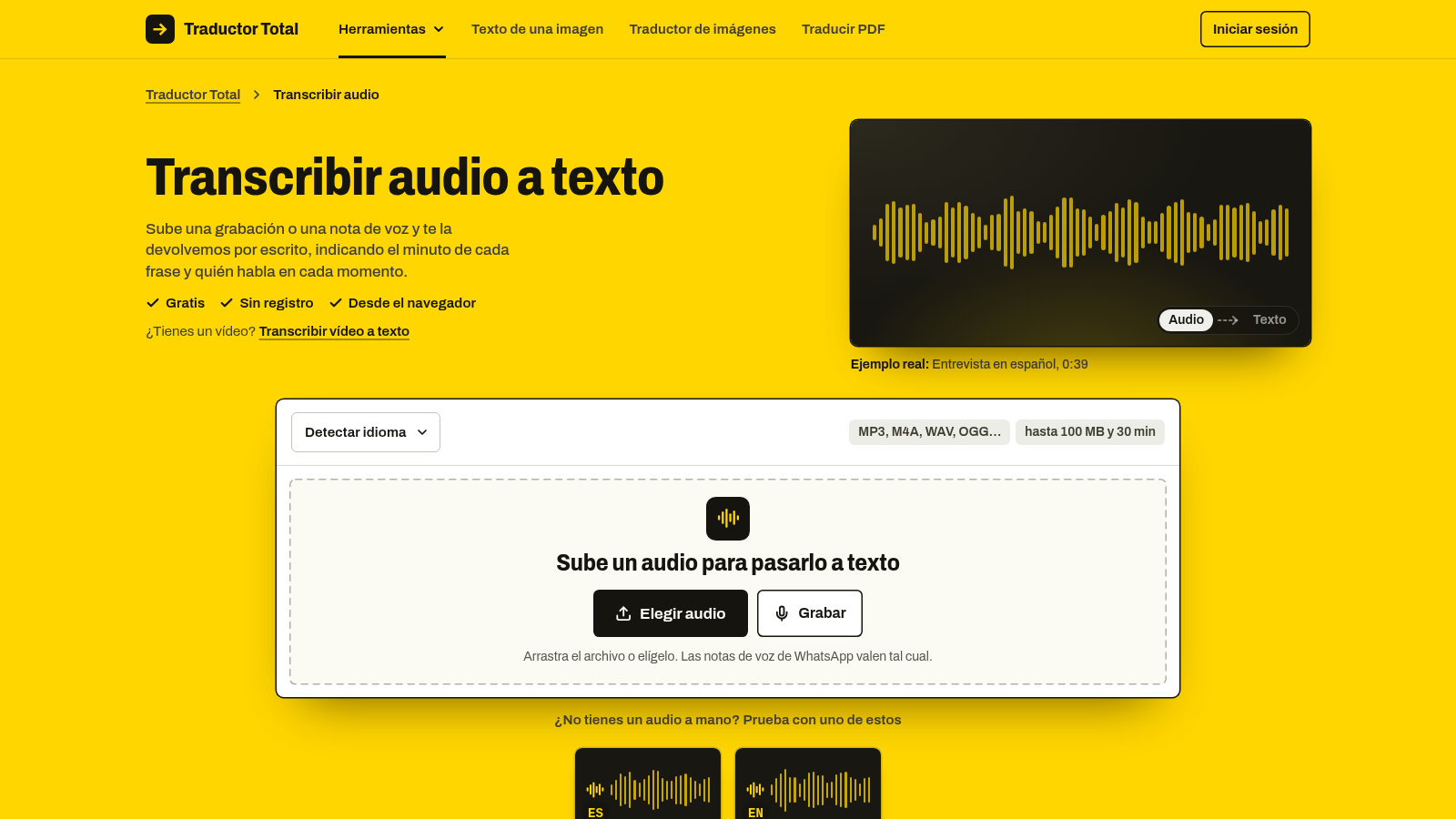
Notice the supported formats in the upload box shown above, confirming that WhatsApp audio files upload directly without prior conversion.
Supported Formats and File Limits
Because WhatsApp and Telegram use OGG and OPUS containers, many generic transcription sites reject them immediately. This tool accepts OGG and OPUS directly without prior conversion. It also supports MP3, M4A, WAV, AAC, FLAC, WMA, WebM, and extracted sound from MP4 or MOV files.
The tool handles recordings up to 30 minutes in length and up to 100 MB per file. This ceiling easily covers daily voice memos, twenty-minute project updates, and standard interview segments.
How to Transcribe Your Voice Note Step by Step
- Open the transcription page in your browser.
- Upload your audio file by dragging it into the box or selecting it from your device storage.
- Turn on speaker identification if you are transcribing a conversation, meeting, or interview. This setting separates the transcript into Speaker 1, Speaker 2, and subsequent speakers.
- Allow the speech recognition model to process the audio. The tool automatically detects the spoken language and transcribes what it hears in that language.
- Review the result on screen. Each phrase includes an accurate timestamp. Tapping any line jumps the built-in player directly to that second in the recording, making it simple to verify names or technical terms.
- Copy the text directly to your clipboard, save it as a TXT document, or export it as an SRT subtitle file.
Limits and Practical Editing
Automated speech recognition depends heavily on recording conditions. A voice note spoken closely into a phone microphone yields clean text. Conversely, an audio file recorded across a large meeting room with noticeable echo will require manual review. The model also transcribes natural conversational filler words, such as “um” or “you know”, whenever they are spoken clearly. Cleaning up those filler words or creating a summary is a quick manual step you perform in your preferred text editor.
Audio Transcription, Video Transcription, and Audio Translation
Different media tasks require different processes. The site handles these distinct workflows on dedicated pages rather than bundling them into a confusing single dashboard.
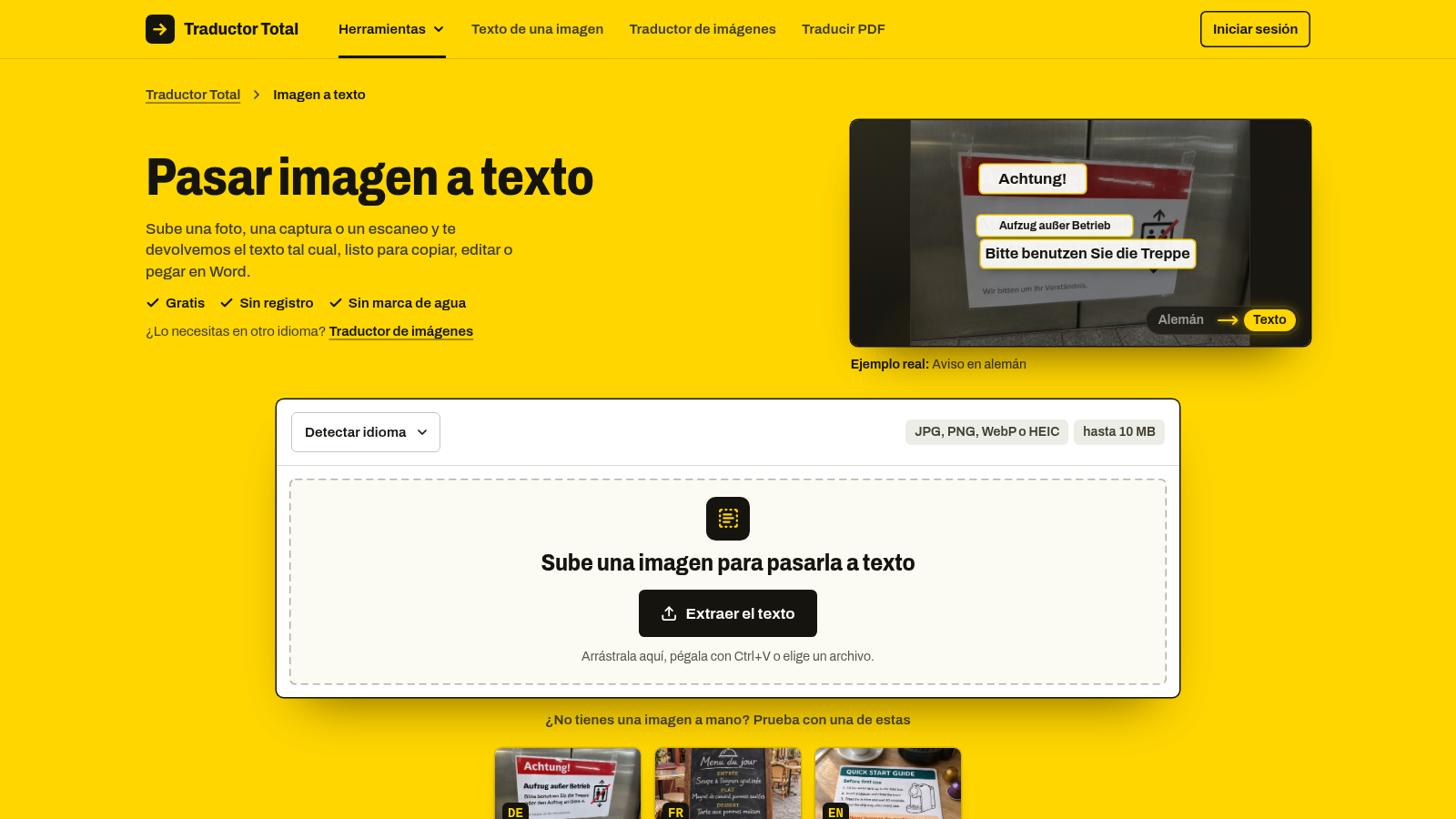
As seen in the screenshot above, the platform separates specialized tasks into dedicated single-job utilities.
When working with recordings, select the page that matches your actual goal:
- Audio transcription: Use this when you have an audio file and need the written transcript in the original spoken language. The output provides timestamps and optional speaker detection.
- Video transcription: When you have a complete video file rather than a voice memo, visit the dedicated tool to transcribe a video to text. This separates the speech from the video track and exports the timing as an SRT file suitable for video editing software or YouTube captions.
- Audio translation: If a colleague sends a recording in French, English, or German and you need to understand it in Spanish, use the tool to translate audio. This page takes the voice recording, identifies the spoken source, and translates the speech line by line into Spanish or one of 20 other supported target languages.
Which Method Fits Your Situation?
- For a short ten-second voice note: Listen to it directly or use your phone's built-in live captioning if you cannot play sound.
- For regular 5 to 30-minute voice notes, meetings, and classes: Download the audio file and upload it to the browser transcription tool. You gain timestamps, speaker splits, and a plain TXT or SRT export without paying for software.
- For content creators and video editors: Upload your media directly to the video transcription page to generate timed SRT subtitle files.
- For international recordings: Use the audio translation page to produce a translated text version alongside the audio playback.
Frequently Asked Questions
Do I need to convert my WhatsApp audio to MP3 before transcribing it?
No, you do not need to convert your WhatsApp audio files to MP3. The browser tool accepts OGG and OPUS formats directly alongside standard formats like M4A and WAV.
Can the tool tell different speakers apart in a recorded interview?
Yes, you can enable speaker identification before processing the file. The tool analyzes voice patterns and divides the transcript into distinct labels such as Speaker 1 and Speaker 2.
What should I do if my recording is longer than 30 minutes?
The platform enforces a limit of 30 minutes and 100 MB per file. To transcribe a longer seminar or meeting, split the audio file into two shorter segments before uploading.
How do I turn the transcript into video subtitles?
Once the audio processing finishes, choose the option to export as an SRT file. This file contains the exact phrase timings and can be imported directly into YouTube or any standard video editing program.
Save the voice note file to your phone or computer, open the transcription page in your browser, and let the tool turn your spoken messages into searchable text.