How to translate an image into Spanish without losing the design
Translating text from a photo or a screenshot is often a frustrating experience. You start with a clear, readable image, but as soon as you attempt to extract the information, the original formatting disappears. When you only have the text, you lose the context provided by the layout, arrows, or labels in the original document. Whether you are dealing with a restaurant menu, an imported product label, or a slide export, the design is often just as important as the words themselves.
To translate an image into Spanish while maintaining its structure, you need an approach that treats the image as a single visual unit rather than just a source of text. I have found that Traductor Total offers a straightforward way to handle this by processing the entire image in your browser without requiring account creation or software installation.
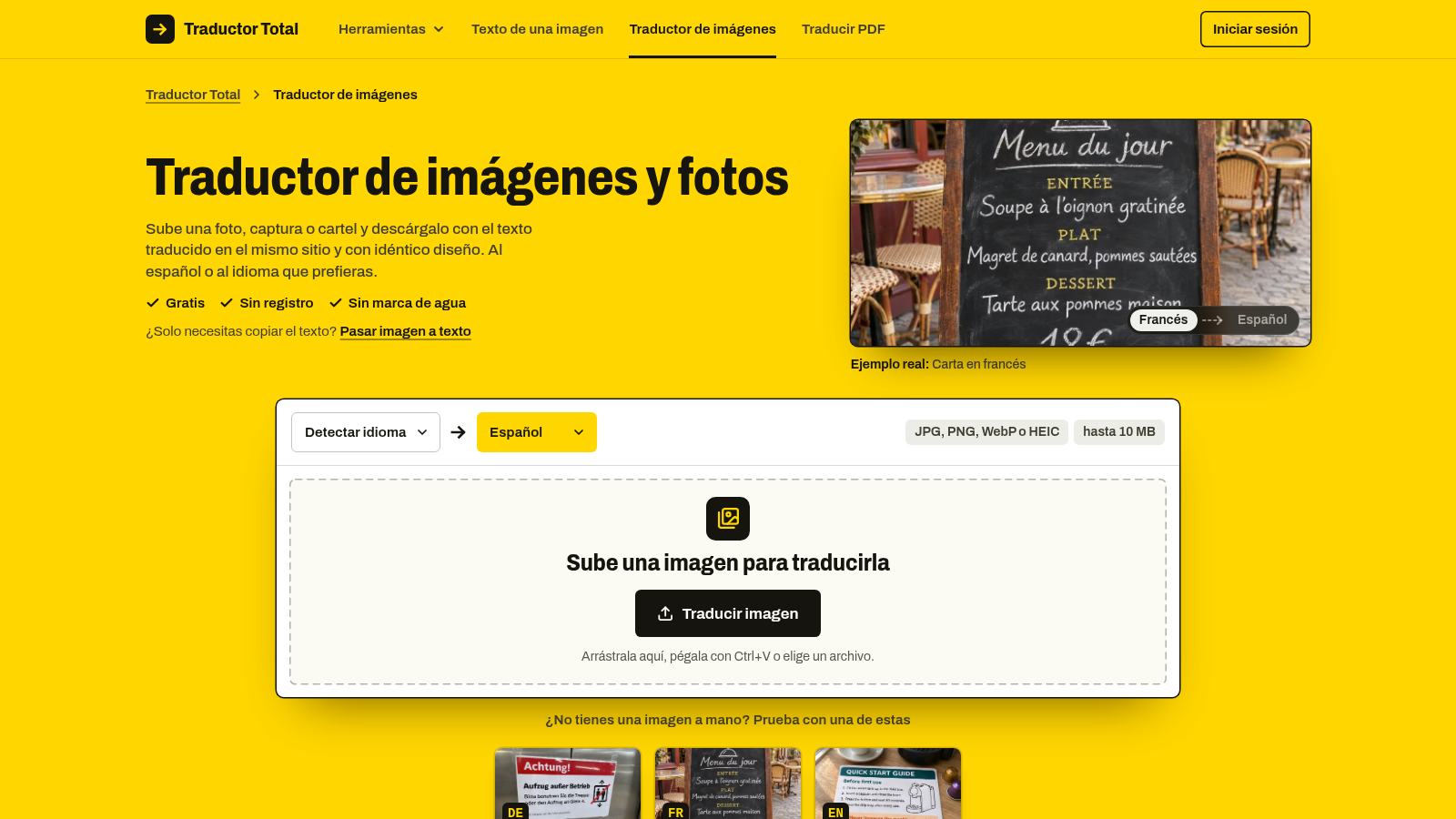
You can see here how the interface is designed to focus on the task of swapping text while preserving the surrounding visual elements.
Why translating image text is difficult
The fundamental challenge with translating an image is that computers traditionally separate text from images. Standard text translators operate only on raw characters. If you take a picture of a document and paste it into a text-only tool, you are left with a block of text that lacks the original alignment. You lose the relationship between the labels and the parts of a diagram or a technical spec sheet.
Another technical hurdle is the background. When you remove text to make space for a translation, you are often left with a white box. This creates a messy, amateur look that obscures the underlying graphic or photo. Effective image translation requires a vision model capable of performing optical character recognition and then filling in the gaps using the surrounding colors to create a clean, seamless result.
Practical approaches to image translation
When you need to get the meaning from an image, you have a few ways to proceed.
Using general text extraction
Many people start by trying to copy text from an image. You use a tool to copy the text from an image and then paste that output into a translator. While this works if you only need the words for a quick reference, it fails the moment you have to explain a map, a technical diagram, or a document where the position of the text dictates its meaning. You end up with a wall of words instead of the functional document you started with.
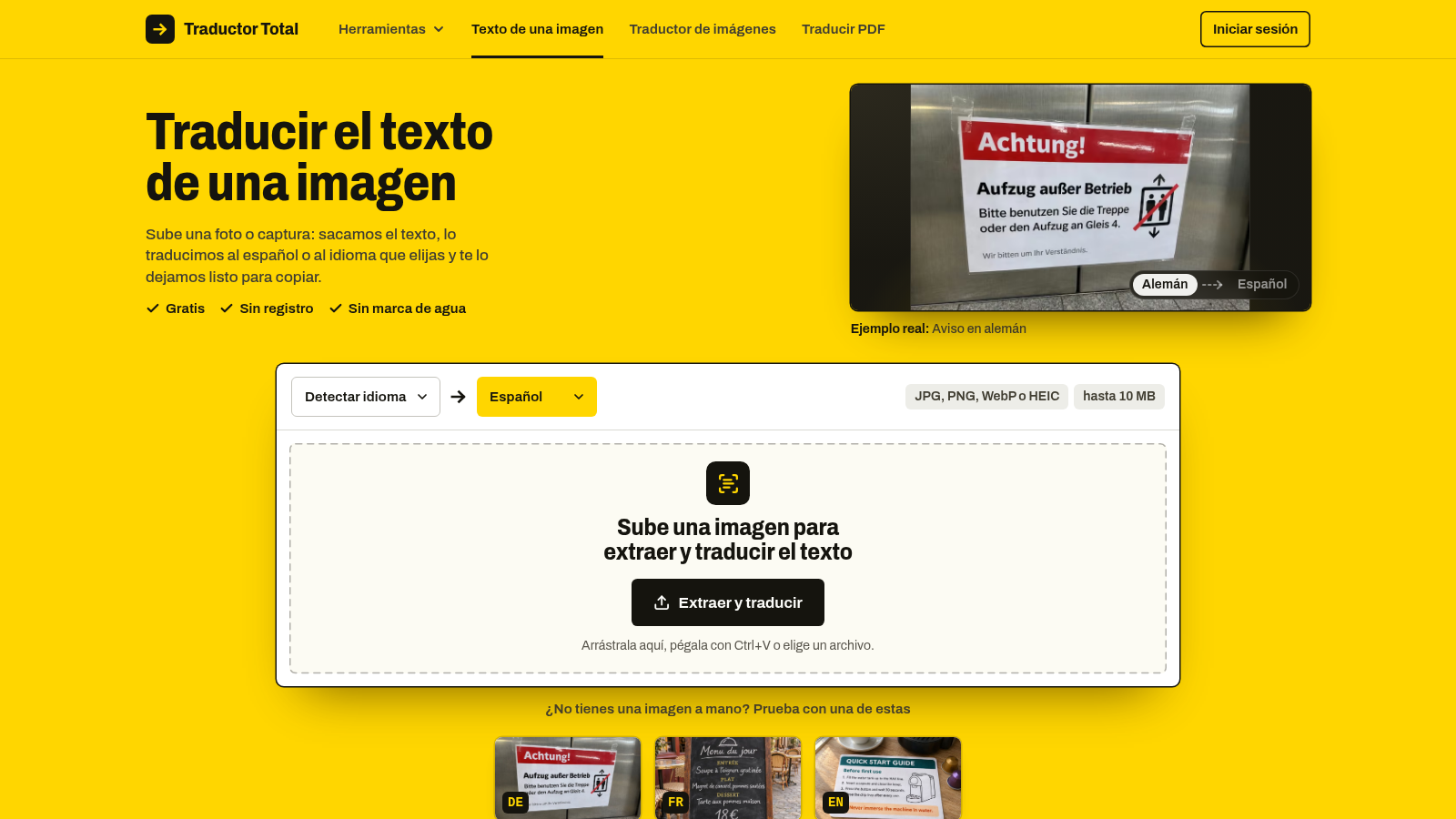
This side-by-side view illustrates the difference between simply grabbing raw text and keeping the original layout intact.
Using an image-focused translator
The more efficient way is to use a tool that keeps the design. When you use the site to translate an image into Spanish, you upload files like JPG, PNG, WebP, HEIC, GIF, or BMP, up to 10 MB in size. The service uses vision models to locate each block of text. It translates the content in place and reinserts it into the original coordinate, maintaining a similar font size and color. Because it fills in the space left behind by the original text using the surrounding background colors, you avoid the white-box problem that usually ruins translated screenshots.
This approach works well for manga panels, game screenshots, restaurant menus, and real-estate plans where the layout is part of the message. The process is handled in your browser, meaning you get a result without needing to install anything. After the processing is complete, you can use a before-and-after slider to check the quality before you commit to the download.
Getting the best results
While the technology is capable, it does have specific limits. The tool is not a design program; it does not rebuild a document from scratch. If you provide a photo with extremely busy artwork or handwritten notes, the OCR may struggle to correctly identify the text. Similarly, if your translation is significantly longer than the original text, the tool fits the new words into the same box, which may lead to smaller text sizes to accommodate the length.
For the highest quality, provide photos with good lighting and clear, straight-on angles. If you are working with a document that spans multiple pages, remember that the site also offers a specific tool to translate a PDF into Spanish to ensure the entire file structure remains consistent.
Does this tool save the original file format?
The resulting download is an image file that matches the dimensions and layout of your original, providing you with a clean copy without watermarks or added logos.
What if my text is over a textured background?
The engine works best on screenshots, flat backgrounds, and straight photos. On highly textured surfaces, the area where the original text was removed may appear slightly smoothed.
Can I use this on my phone?
The service runs directly in your browser on both desktop and mobile devices. On a phone, the result saves directly to your gallery or your device download folder.
If you have an image that contains important information, upload it to the tool and check the preview to see how it handles your specific layout.